> ## Documentation Index
> Fetch the complete documentation index at: https://trilogymc.mintlify.site/llms.txt
> Use this file to discover all available pages before exploring further.
# Installing Simple Voice Chat (Client-side)
To use Simple Voice Chat (Proximity Voice Chat) within our server, you will need to install the plugin as a client-side modification. To do this, please follow the guide step by step. Once completed, you will be ready to go!
In this guide, we will install the Fabric version of the Simple Voice Chat plugin. If you're open to using Fabric, please continue reading. For other platforms, review their documentation.
## **Setting up the Fabric Loader & API**
Navigate to the Fabric Loader [website ](https://fabricmc.net/)and download the latest version by clicking the big blue \*\*Download \*\*button.
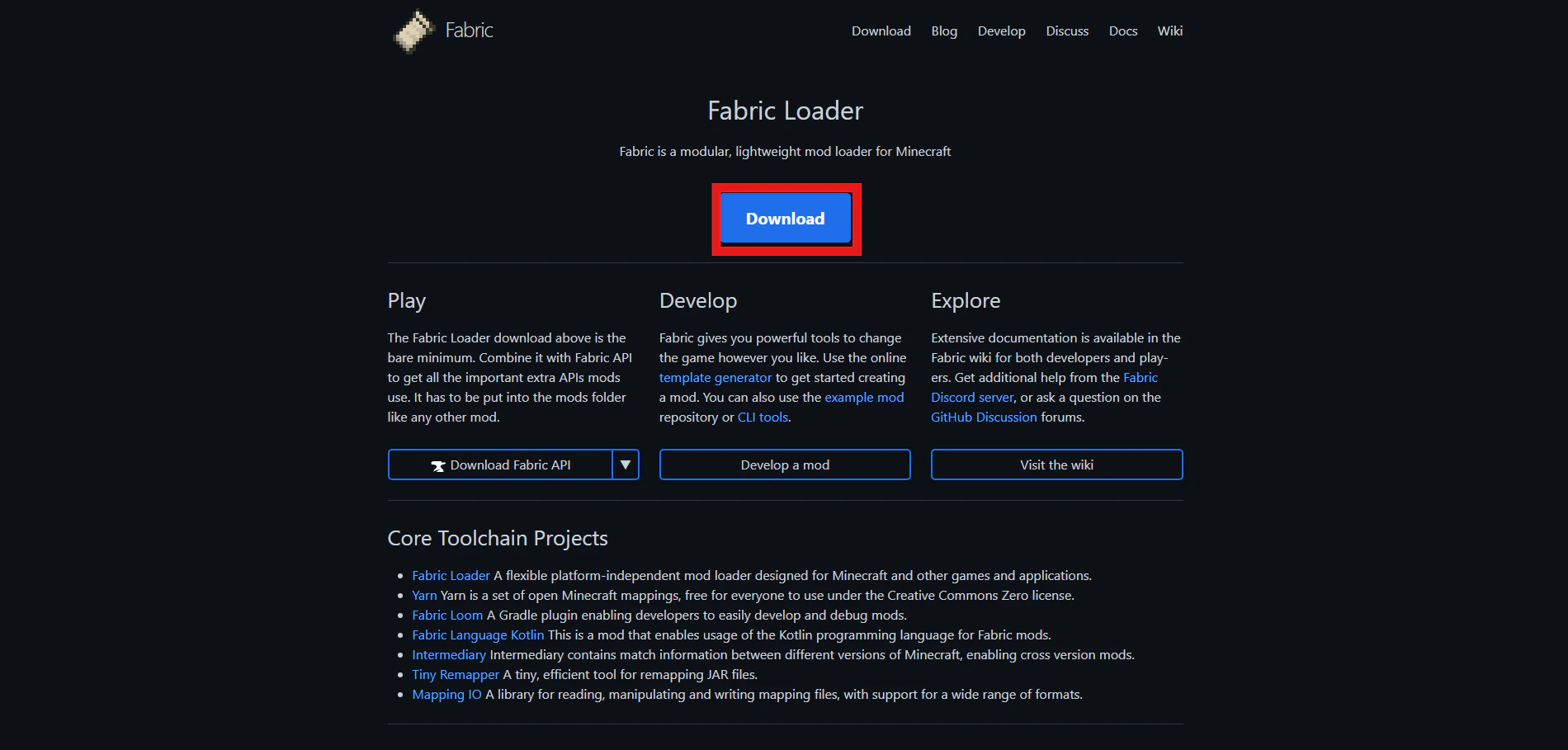 Once downloaded, double click the downloaded file and await for a menu to pop-up.
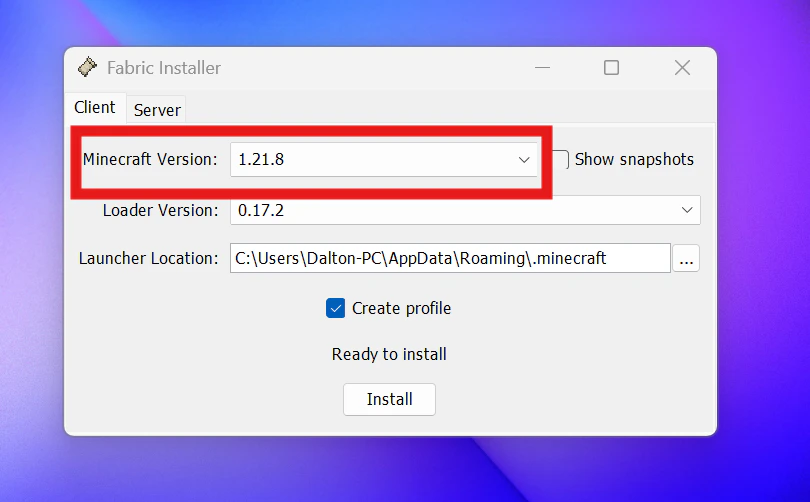
It will then ask you to choose a Minecraft version. Choose whichever version you want. This will be important to note further in this guide.
Our server uses 1.21.10 by default, but does allow other version, choose that or a version or two above.
Once downloaded, double click the downloaded file and await for a menu to pop-up.
It will then ask you to choose a Minecraft version. Choose whichever version you want. This will be important to note further in this guide.
Our server uses 1.21.10 by default, but does allow other version, choose that or a version or two above.
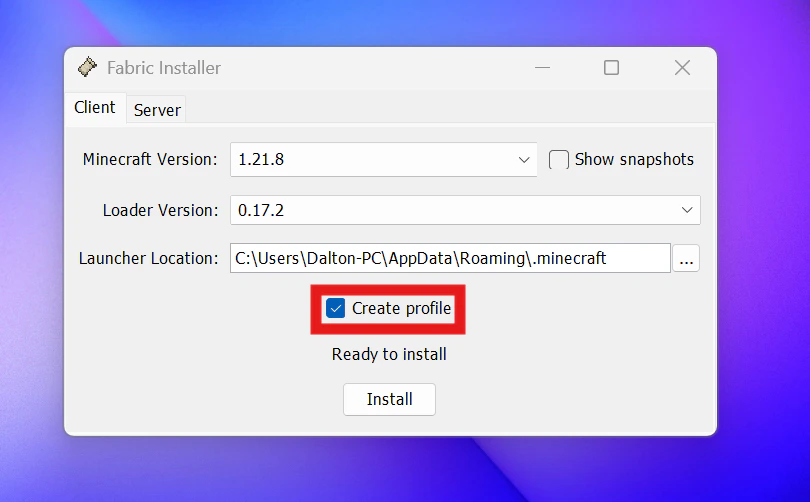
 The installer will automatically locate your Minecraft launcher's location.
Once that is set, leave everything else alone and check on the "Create profile" option before pressing "Install".
The installer will automatically locate your Minecraft launcher's location.
Once that is set, leave everything else alone and check on the "Create profile" option before pressing "Install".
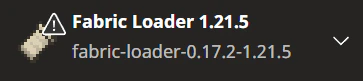
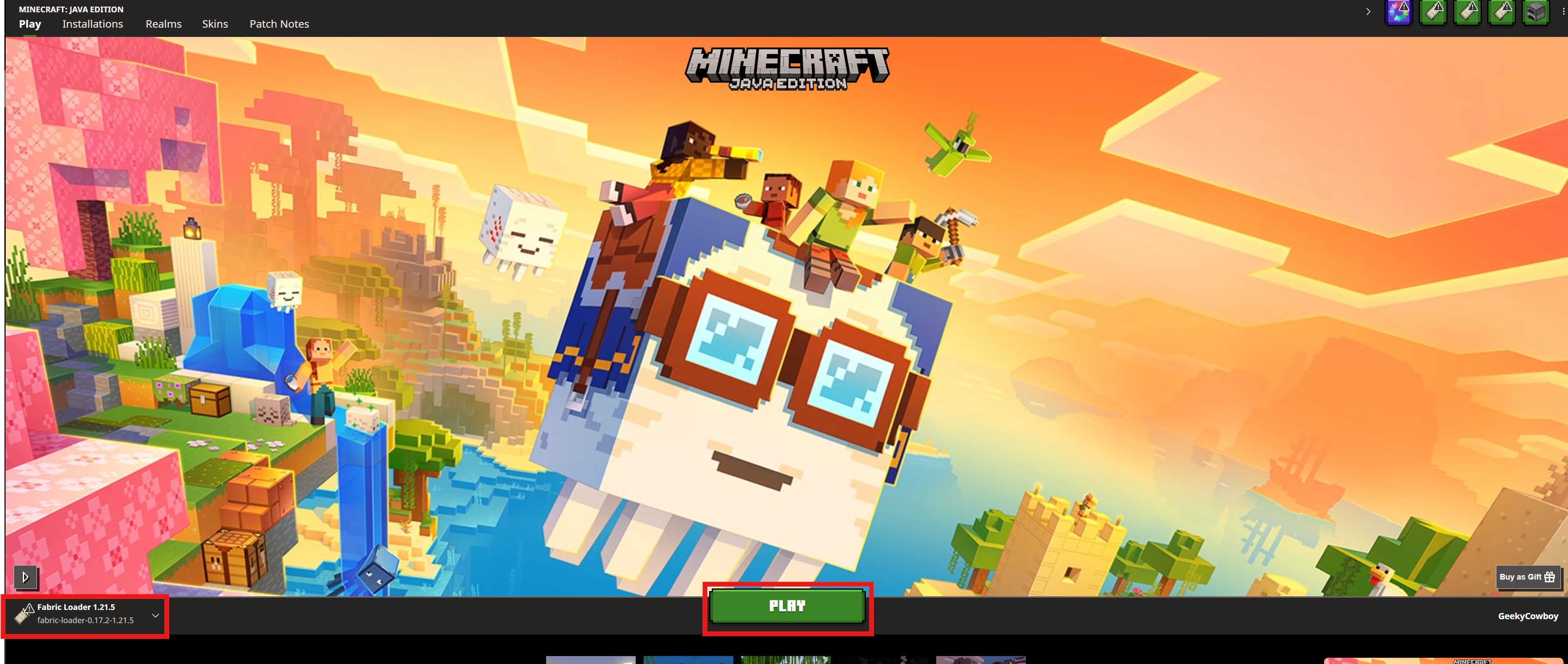
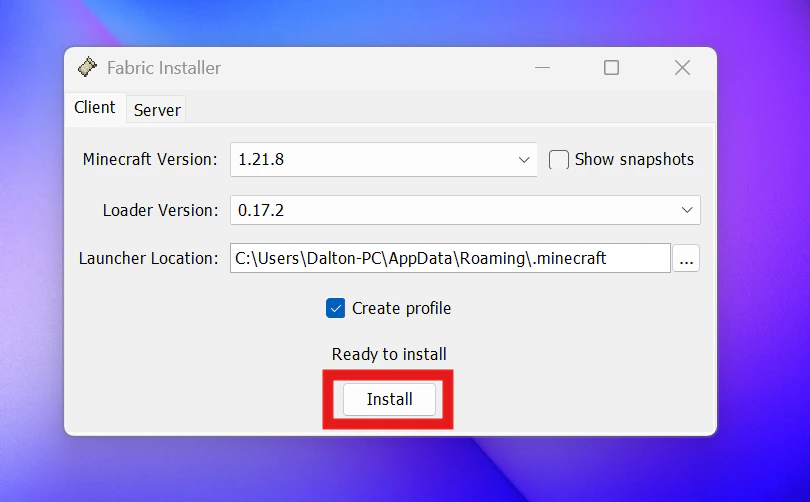 Exit the installer program and launch your Minecraft launcher. You should now see a new profile added to your launcher, Fabric Loader, with the version number beside it. If you see that, you are good to go!
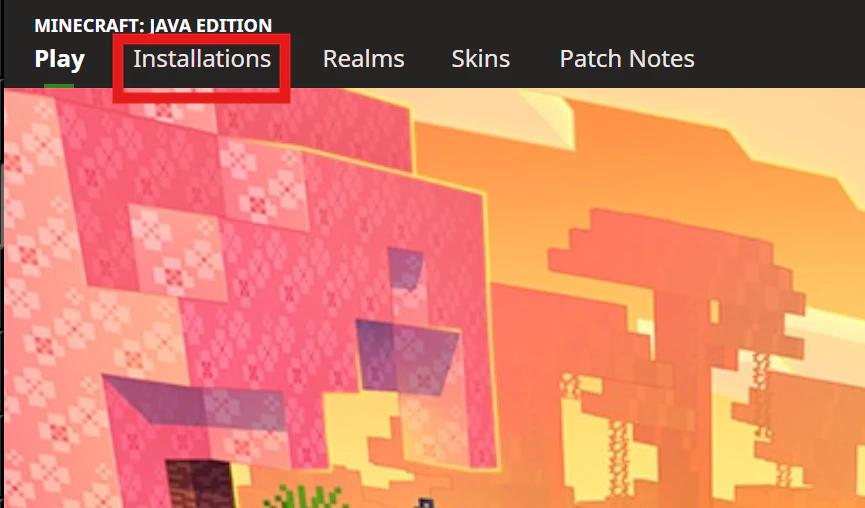
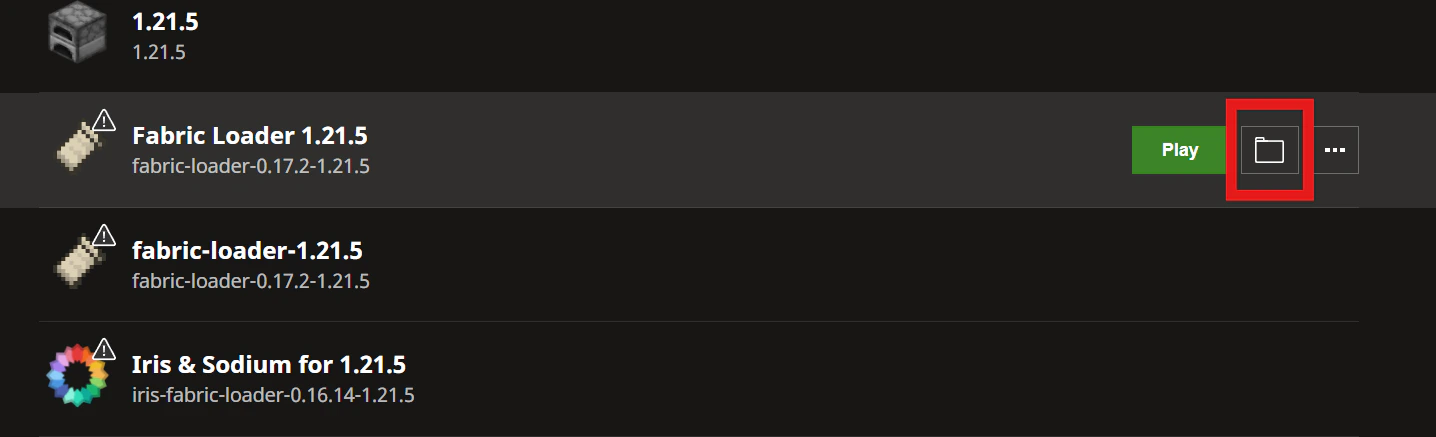
 Next up, in the top left, click on "Installations" and then hover to the right of the Fabric Loader profile. You'll notice a folder icon, click on that, and it will take you to your installation folder.
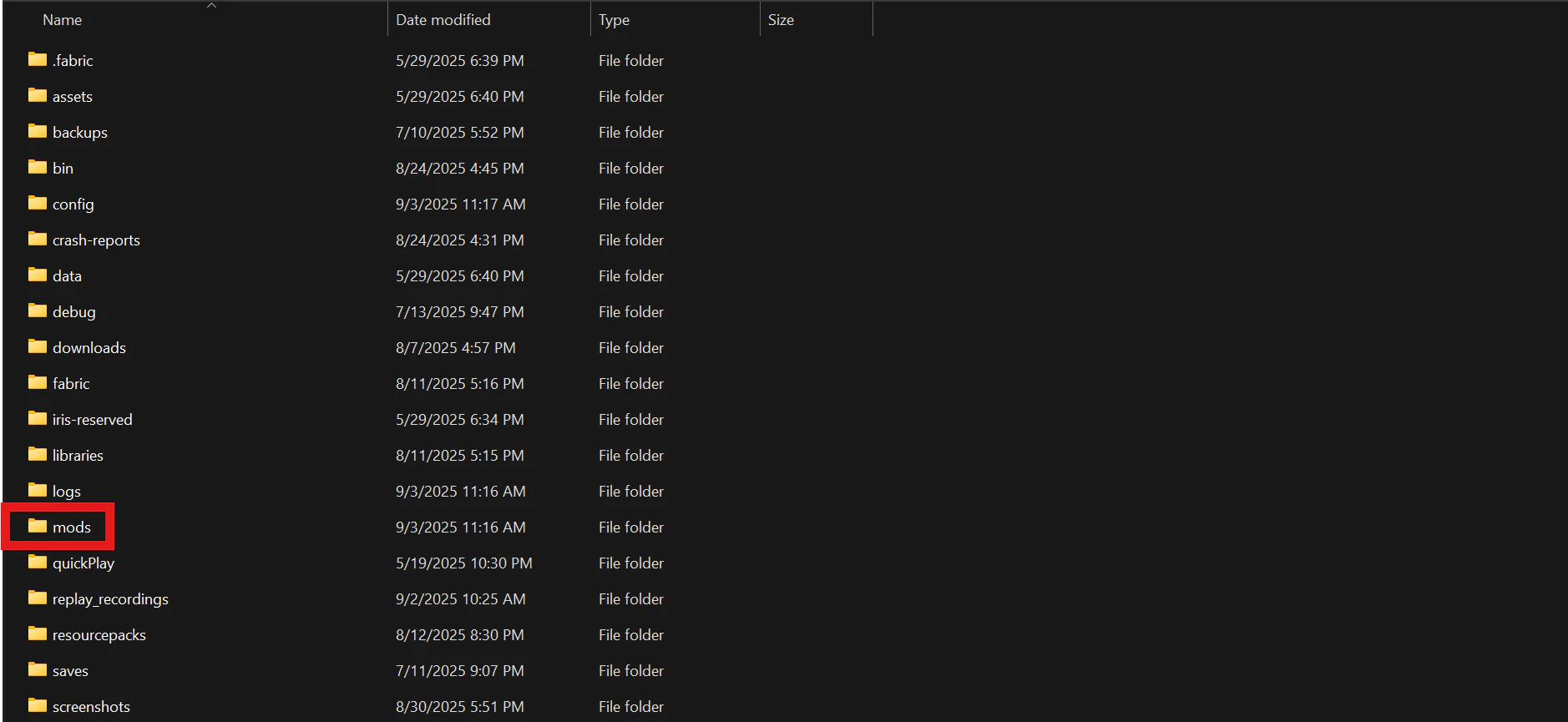
 In the installations folder, you'll also see a `mod` folder. That is where that Simple Voice Chat plugin will go, but before you can do that, you need to install the Fabric API.
 Go to [Modrinth ](https://modrinth.com/mod/fabric-api)and download the Fabric API plugin for the version you are using in your newly created Fabric Loader profile.
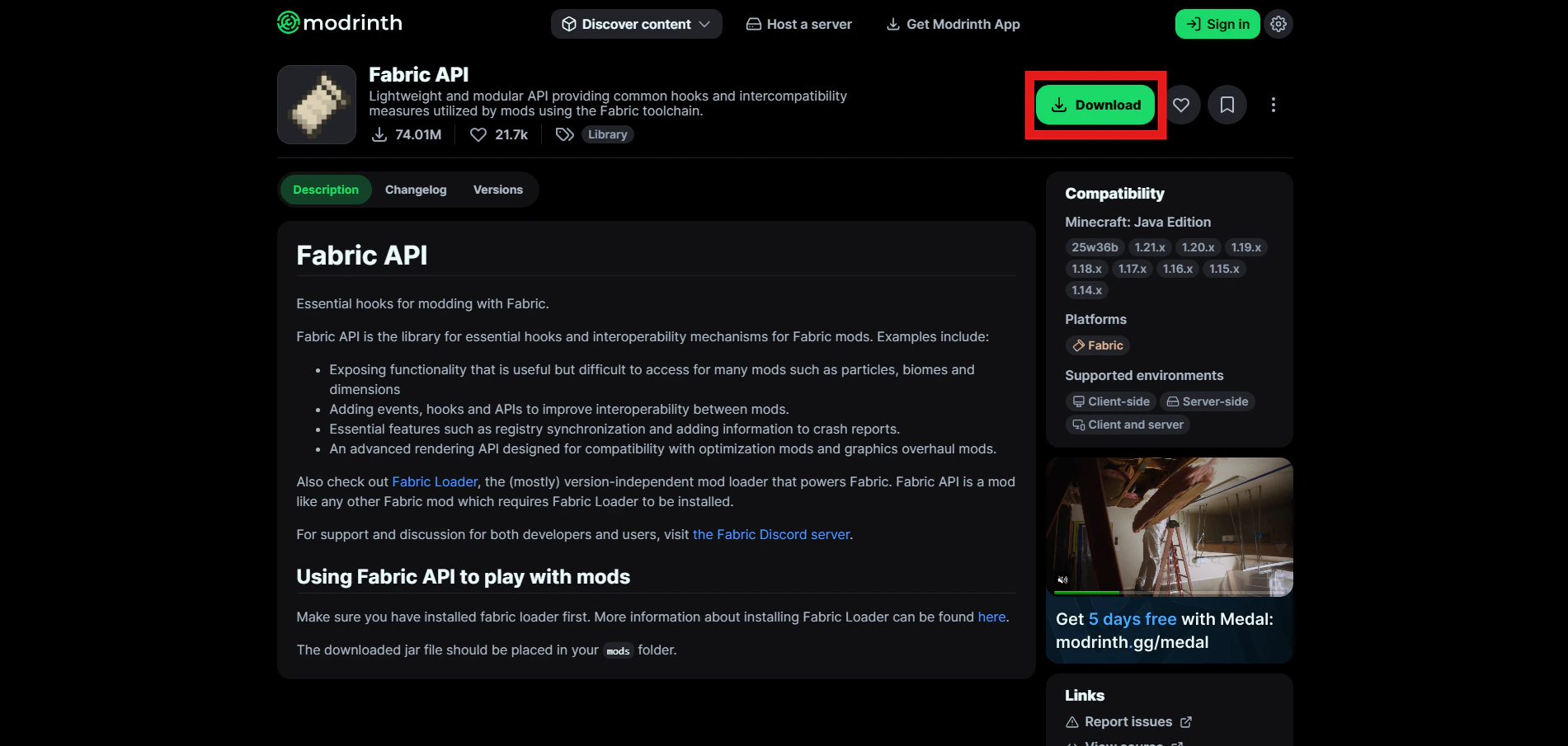
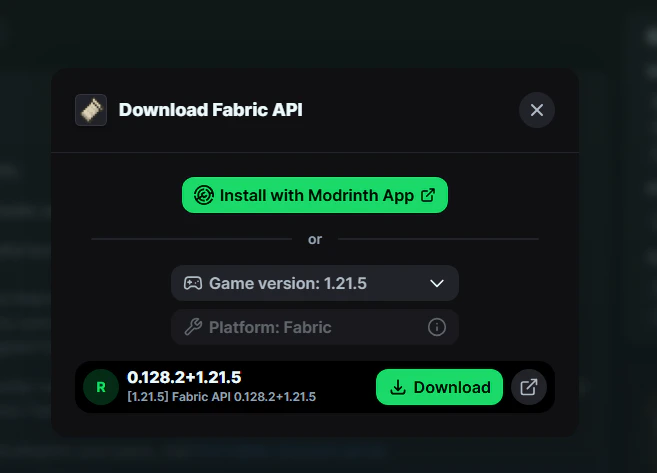 To download it from Modrinth, click on the green \*\*Download \*\*button, select the game version that matches with your recently installed Fabric Loader, and await for it to download.
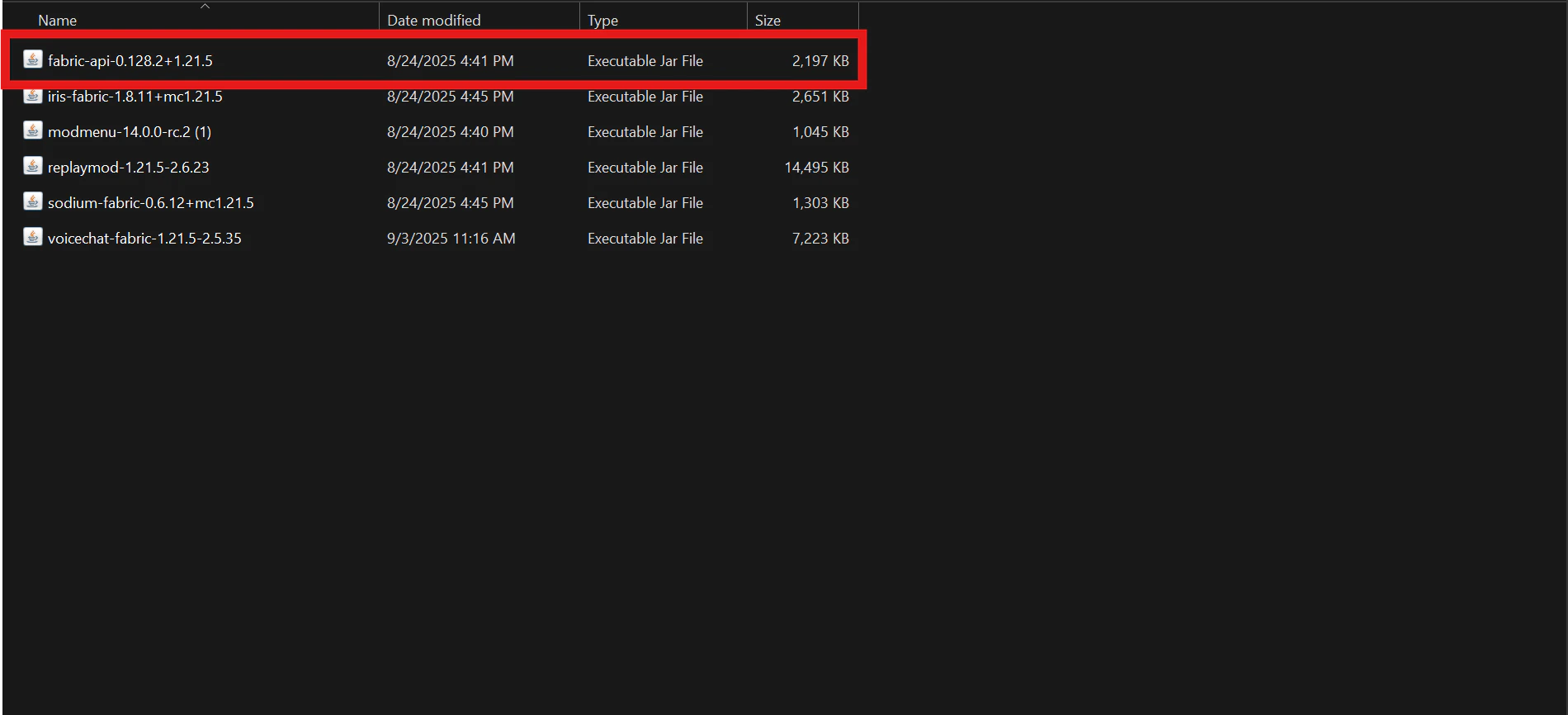
Once it is downloaded, copy and paste it into your mods folder.
To download it from Modrinth, click on the green \*\*Download \*\*button, select the game version that matches with your recently installed Fabric Loader, and await for it to download.
Once it is downloaded, copy and paste it into your mods folder.
 ## **Install Simple Voice Chat**
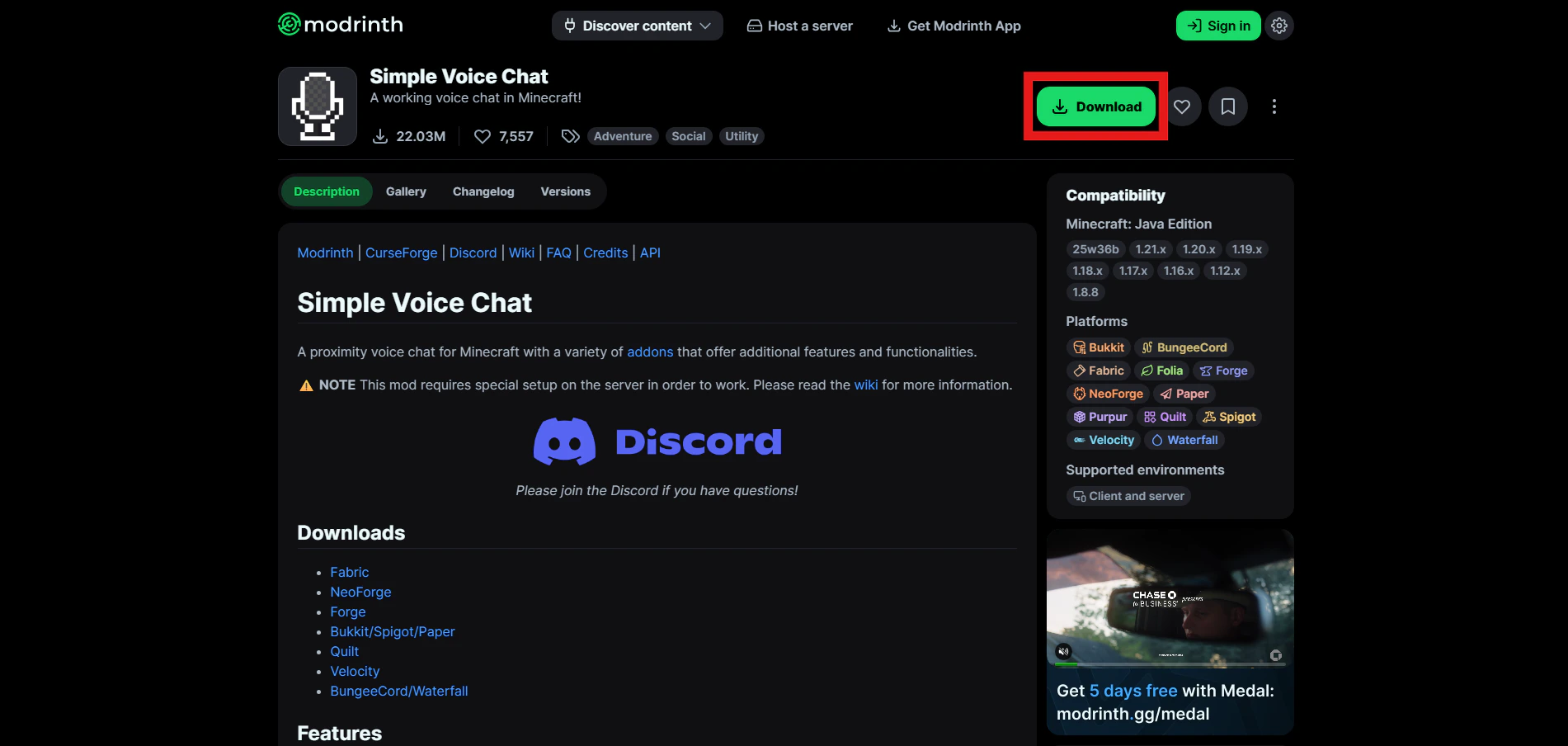
After, go and grab the Simple Voice Chat plugin from Modrinth. Click the green **Download** button, choose the Minecraft version you chose when installing the Fabric Loader, and choose Fabric within the platform. Then hit the \*\*Download \*\*button again and wait for it to download to your computer.
## **Install Simple Voice Chat**
After, go and grab the Simple Voice Chat plugin from Modrinth. Click the green **Download** button, choose the Minecraft version you chose when installing the Fabric Loader, and choose Fabric within the platform. Then hit the \*\*Download \*\*button again and wait for it to download to your computer.
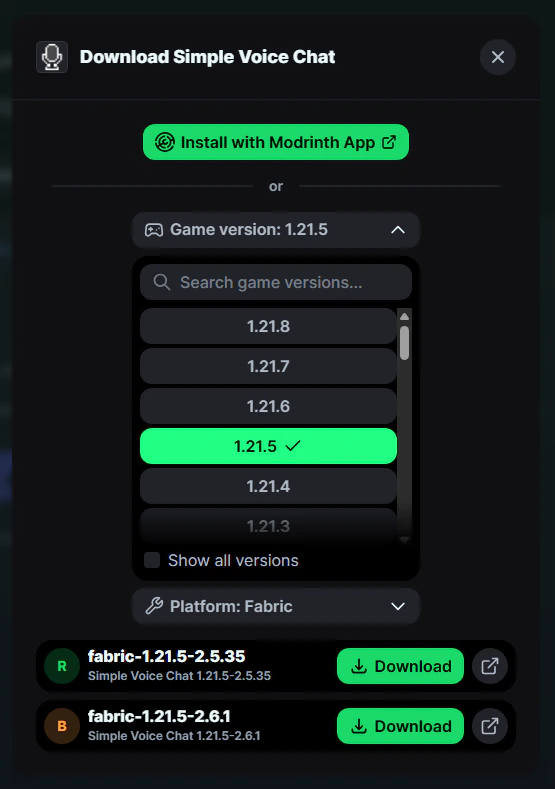
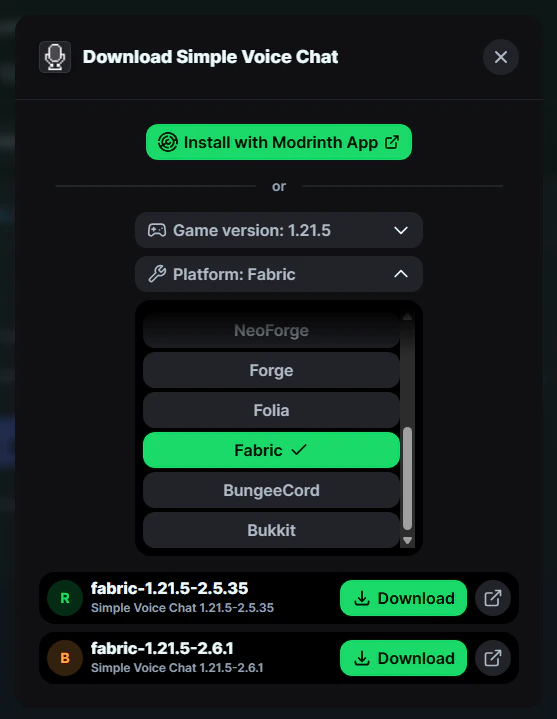
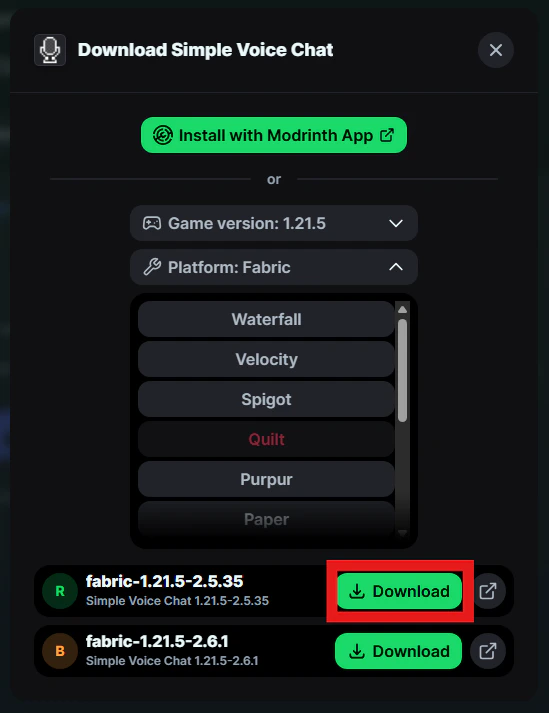 Then add that newly downloaded plugin to the mods folder that we opened up before in installations.
Stick to versions that are release or "R" based when downloading the plugin. Stay away from beta or "B" at this time, please.
Then add that newly downloaded plugin to the mods folder that we opened up before in installations.
Stick to versions that are release or "R" based when downloading the plugin. Stay away from beta or "B" at this time, please.
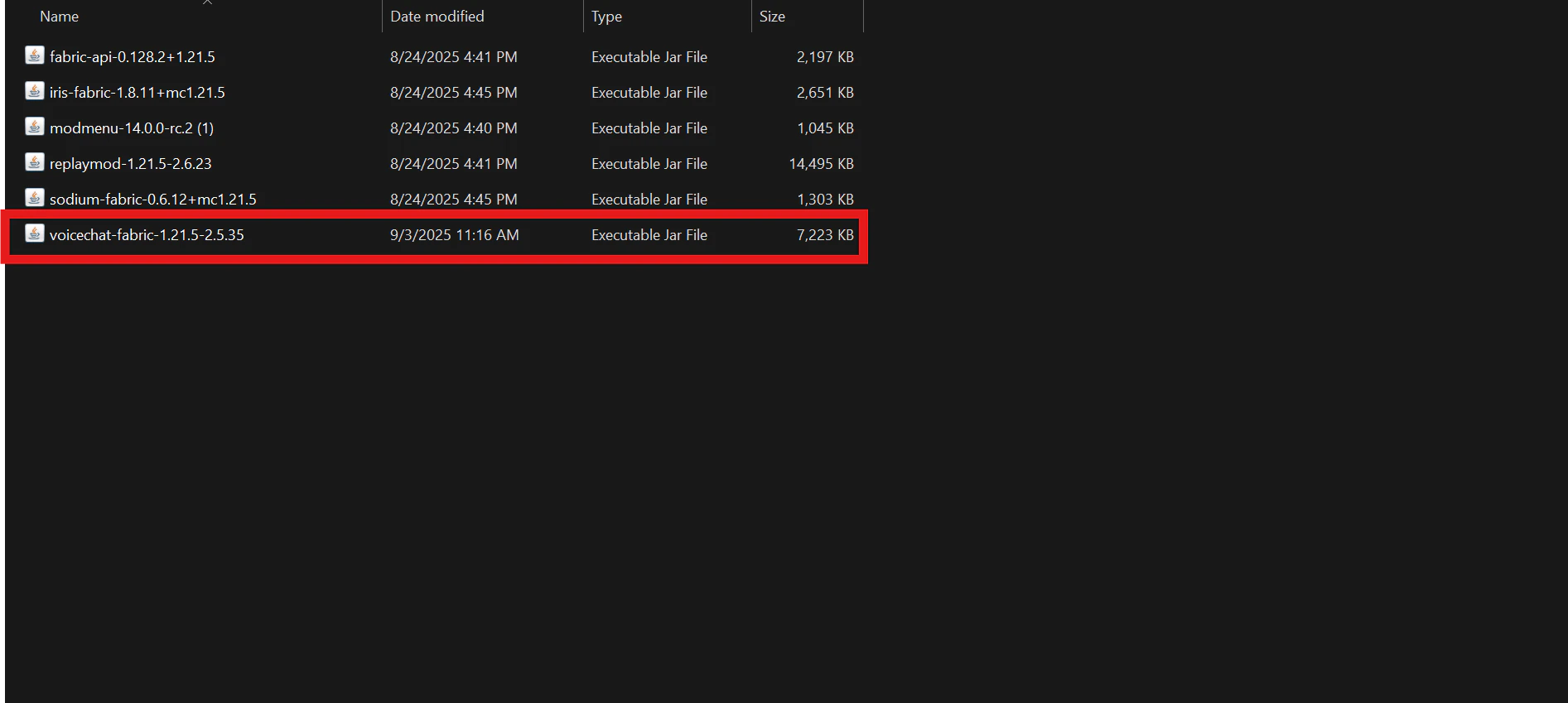 Load up your Minecraft launcher, select your Fabric Loader, and press Play. Check to see if any errors pop up; if not, then load into the server and follow further instructions below.
 ## **Setting up Simple Voice Chat**
Join the server and then press the `V` key. Once done, it will take you through a guide to get setup with Simple Voice Chat.
You can also use the following commands or keybindings.
### **Commands**
| **Command** | **Description** |
| :------------------------------- | :--------------------------------------------------------------------------------------------------------------------------------------------------- |
| `/voicechat help` | Shows all possible commands. |
| `/voicechat invite ` | Invites the player to the group you are in. |
| `/voicechat join ` | Connects you to the group with that name.
## **Setting up Simple Voice Chat**
Join the server and then press the `V` key. Once done, it will take you through a guide to get setup with Simple Voice Chat.
You can also use the following commands or keybindings.
### **Commands**
| **Command** | **Description** |
| :------------------------------- | :--------------------------------------------------------------------------------------------------------------------------------------------------- |
| `/voicechat help` | Shows all possible commands. |
| `/voicechat invite ` | Invites the player to the group you are in. |
| `/voicechat join ` | Connects you to the group with that name.
\_This command only works if there's not more than one group with that exact name.\_ |
| `/voicechat join ` | Connects you to the group with that ID.
\_This should not be used directly. This command is automatically executed when accepting an invite.\_ |
| `/voiccechat leave` | Disconnects you from your current group. |
### **Keybinds**
| **Name** | **Default Key** | **Description** |
| :-------------------- | :---------------------------------------------------------------------------- | :------------------------------------------------------------------------------------------------------------------- |
| Voice Chat GUI | `V` | Opens the voice chat GUI. |
| Voice Chat Settings | *Not bound by default* | Opens the voice chat settings. |
| Group Chats | **1.21.6+**: *Not bound by default*
**1.21.5 and earlier**: `G` | Opens the group chat GUI. |
| Push To Talk | *Not bound by default* | The push to talk key (Only when using activation type `PTT`).
\_You get to set this in the onboarding guide.\_ |
| Mute Microphone | `M` | The mute button (Only when using voice activation type `Voice`). |
| Disable Voice Chat | `N` | This button disables the voice chat. Other people can't hear you and you can't hear them. |
| Hide Voice Chat Icons | `H` | This button hides all icons related to the voice chat. |
| Toggle Recording | *Not bound by default* | Toggles voice chat audio recording. |
| Whisper | *Not bound by default* | Hold down to whisper. |
For more information on how to use this plugin, please view the developer's documentation [here](https://modrepo.de/minecraft/voicechat/overview).