> ## Documentation Index
> Fetch the complete documentation index at: https://trilogymc.mintlify.site/llms.txt
> Use this file to discover all available pages before exploring further.
# How to join TrilogyMC?
To play on the TrilogyMC community server, you must own a Minecraft account for PC/Mac (also known as the Java version).
The TrilogyMC server IP address is: **play.trilogymc.net**
Any other versions, such as Windows 10/11, Pocket Edition, or Console versions, will not work. Pirated copies will be blocked.
## How to join the TrilogyMC Server
You'll need to purchase a Minecraft account (if you don't have one already) and download Minecraft (remember, we only support Java at this time), which can be done from the [official Minecraft website](https://minecraft.net/).
Once installed and ready to play, you can join the TrilogyMC server by adding it to your multiplayer server list.
These instructions do not relate to you if you have not submitted a new player application, gone through a successful player interview, or been whitelisted. Please view this [article ](https://help.trilogymc.net/en/articles/12068899-requesting-access-to-the-server)to learn how to request access to our server.
## Navigate to the Multiplayer Menu
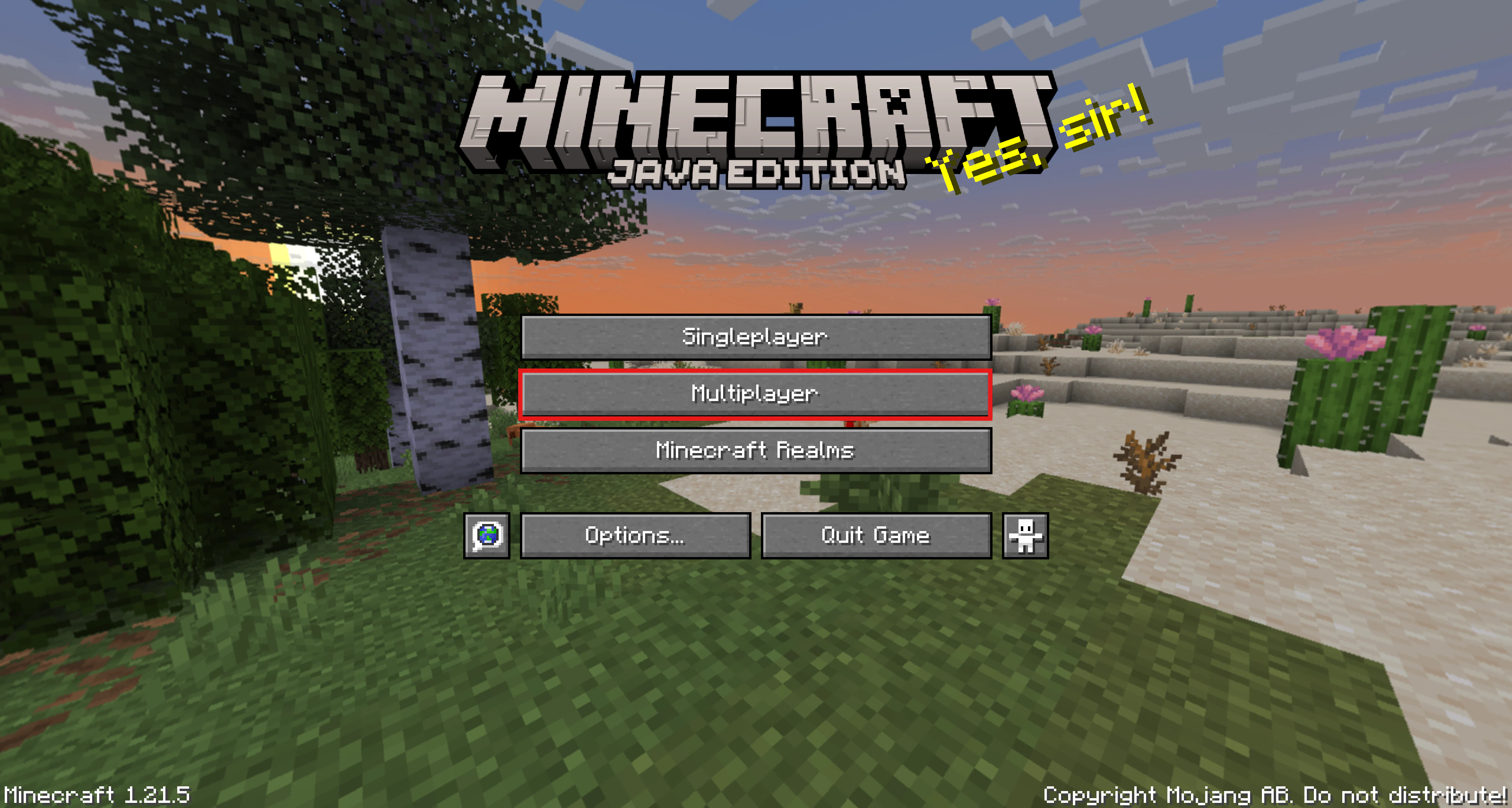 ## Add a Server
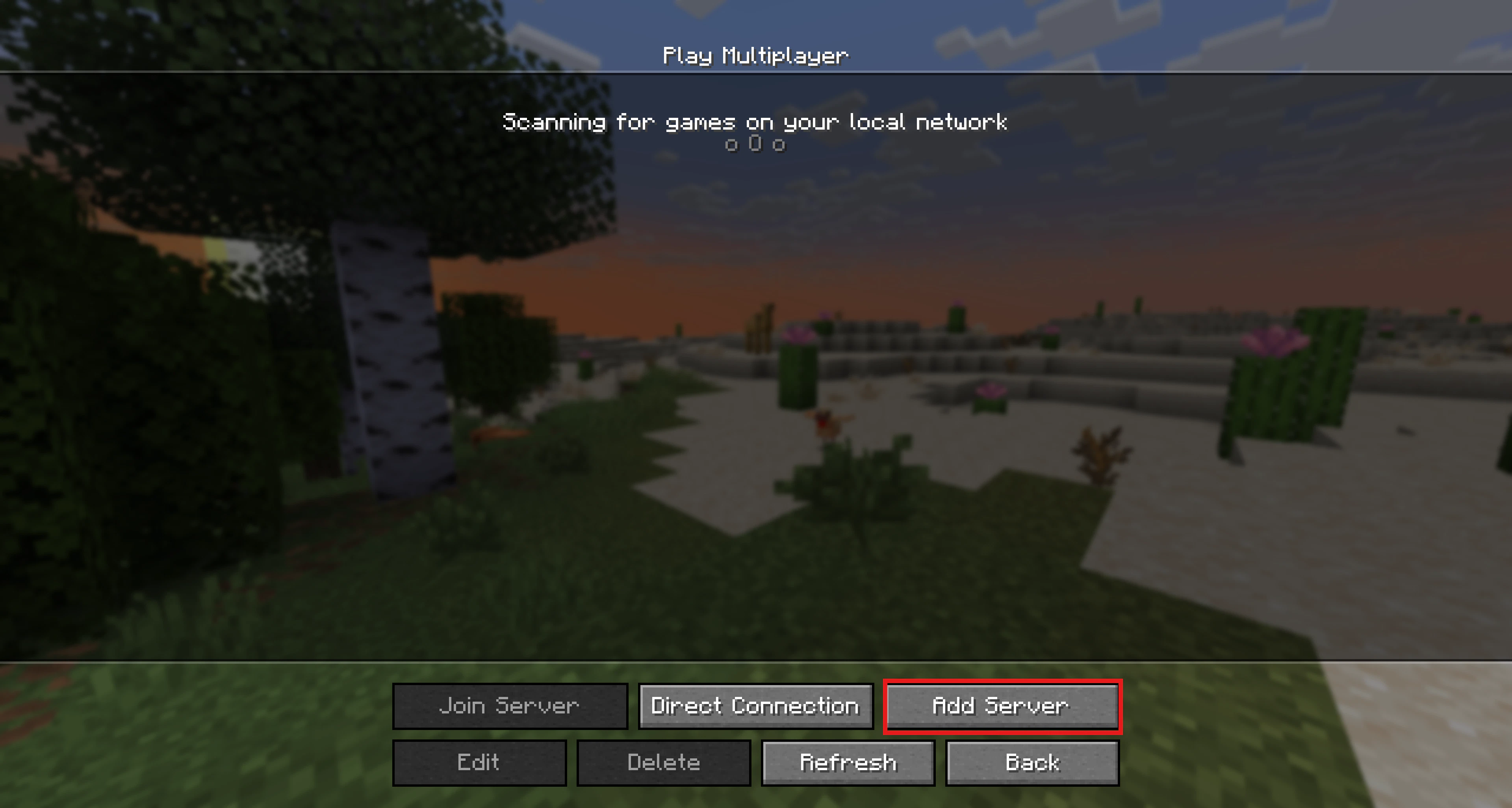
To add the TrilogyMC server to your multiplayer server list, click the Add Server button on the bottom right of the menu.
## Add a Server
To add the TrilogyMC server to your multiplayer server list, click the Add Server button on the bottom right of the menu.
 ## Adding the Server Address
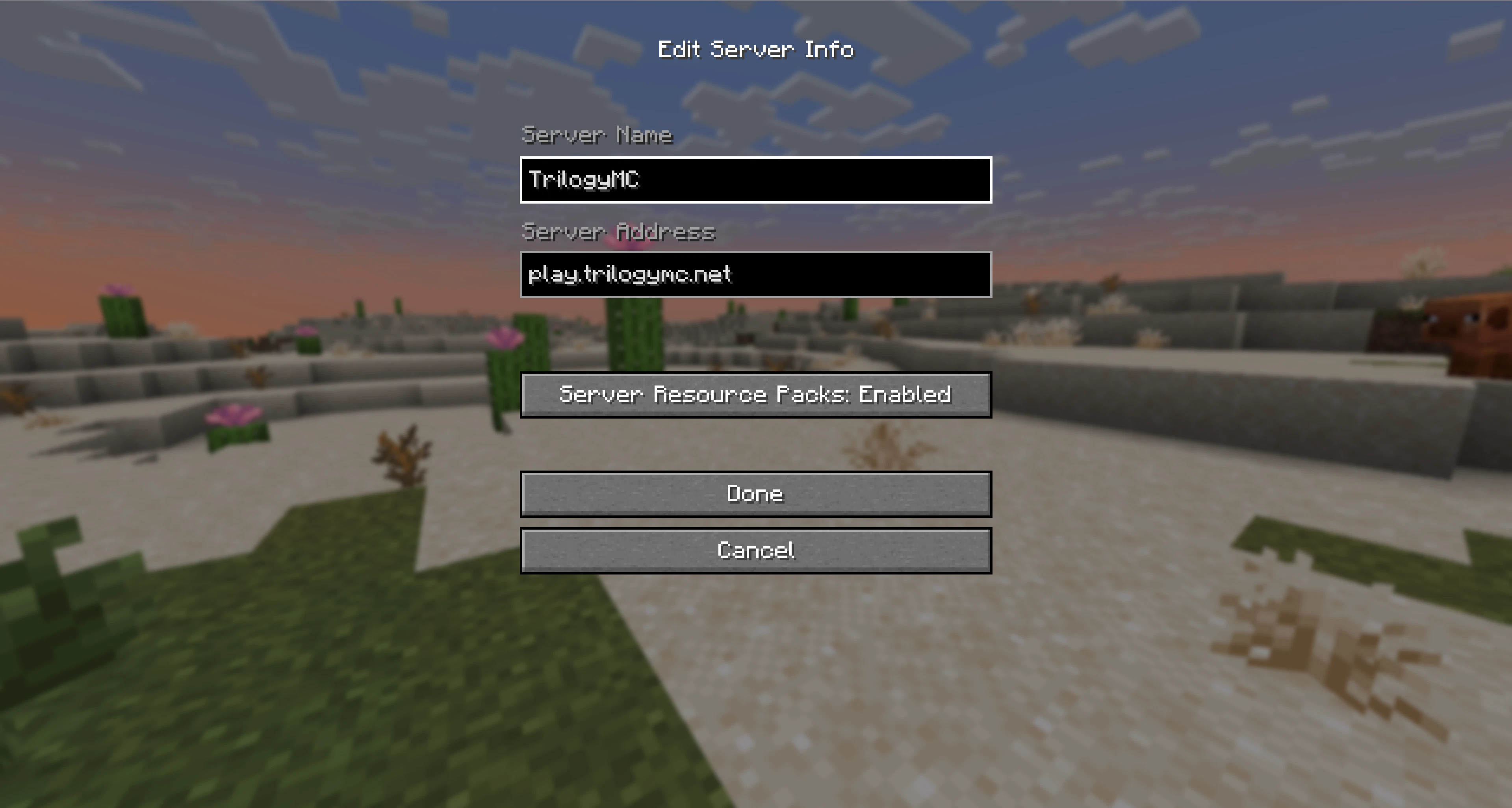
Input the following server details within each of the field boxes shown:
Server Name: `TrilogyMC`
Server Address: `play.trilogymc.net`
Server Resources Packs: Enabled (this allows us to send resource packs automatically)
## Adding the Server Address
Input the following server details within each of the field boxes shown:
Server Name: `TrilogyMC`
Server Address: `play.trilogymc.net`
Server Resources Packs: Enabled (this allows us to send resource packs automatically)
 ## Joining the Server
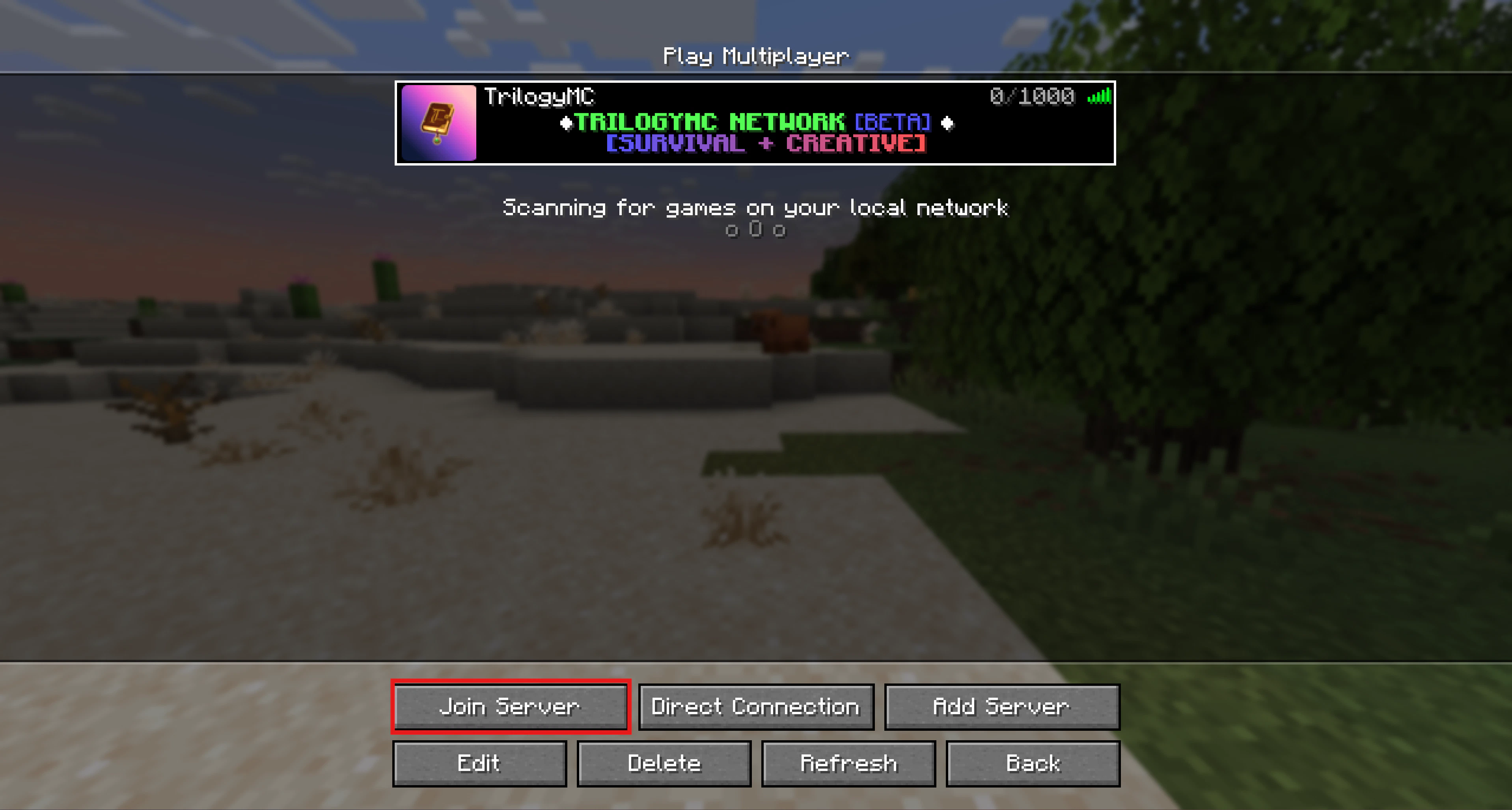
To join TrilogyMC, click on the server in your multiplayer server list and click the **Join Server** button.
## Joining the Server
To join TrilogyMC, click on the server in your multiplayer server list and click the **Join Server** button.
 ## Getting Started
Now that you've joined, let's go over a few of the items you get in your hotbar when joining for the first time:
## Getting Started
Now that you've joined, let's go over a few of the items you get in your hotbar when joining for the first time:
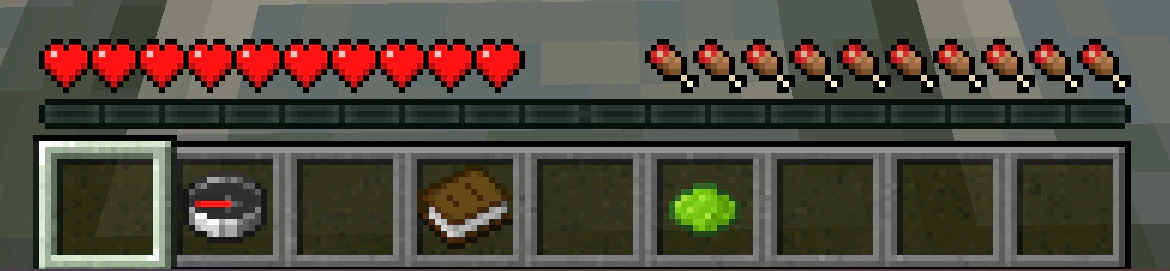 **Compass**
The compass will be used as your Game Menu, which allows you to browse through our current games that are available to play.
**Book**
The book will allow you to navigate through different lobby numbers. Upon clicking it, you will notice that other lobbies will have different colors from the others. If a lobby is marked RED, that's the lobby you're currently in.
**Lime/Grey Dye**
Grey Dye: When enabled, you will not be able to see other players in the lobby.
Lime Dye: When enabled, you will be able to see all the players in the lobby you're currently in.
**Compass**
The compass will be used as your Game Menu, which allows you to browse through our current games that are available to play.
**Book**
The book will allow you to navigate through different lobby numbers. Upon clicking it, you will notice that other lobbies will have different colors from the others. If a lobby is marked RED, that's the lobby you're currently in.
**Lime/Grey Dye**
Grey Dye: When enabled, you will not be able to see other players in the lobby.
Lime Dye: When enabled, you will be able to see all the players in the lobby you're currently in.