To play on the TrilogyMC community server, you must own a Minecraft account for PC/Mac (also known as the Java version). The TrilogyMC server IP address is: play.trilogymc.net Any other versions, such as Windows 10/11, Pocket Edition, or Console versions, will not work. Pirated copies will be blocked.

How to join the TrilogyMC Server

You’ll need to purchase a Minecraft account (if you don’t have one already) and download Minecraft (remember, we only support Java at this time), which can be done from the official Minecraft website. Once installed and ready to play, you can join the TrilogyMC server by adding it to your multiplayer server list.
These instructions do not relate to you if you have not submitted a new player application, gone through a successful player interview, or been whitelisted. Please view this article to learn how to request access to our server.
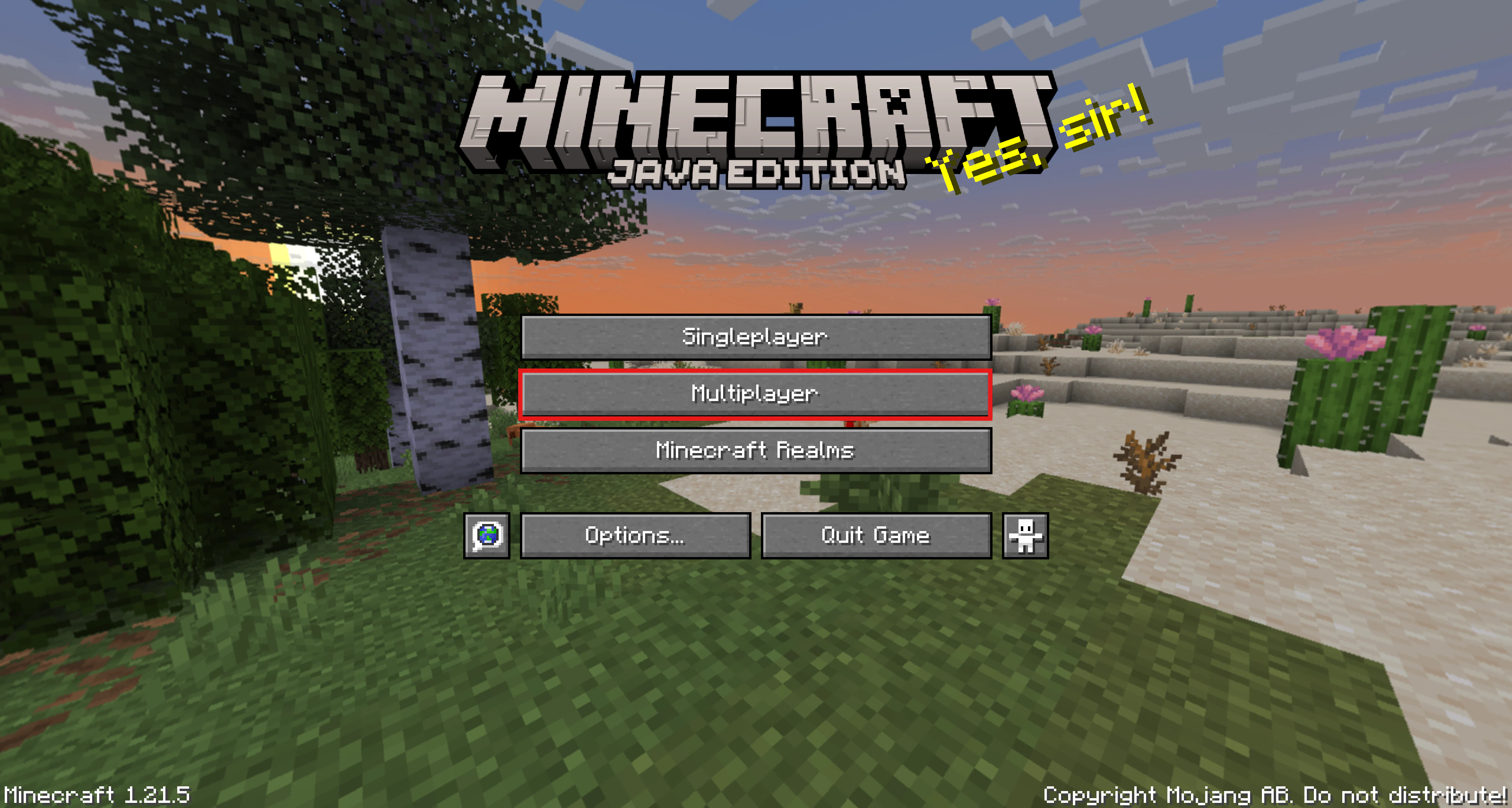
Displays the home screen of Minecraft Java Editor with a red retangled outline around the "Mulitplayer" button.

Add a Server

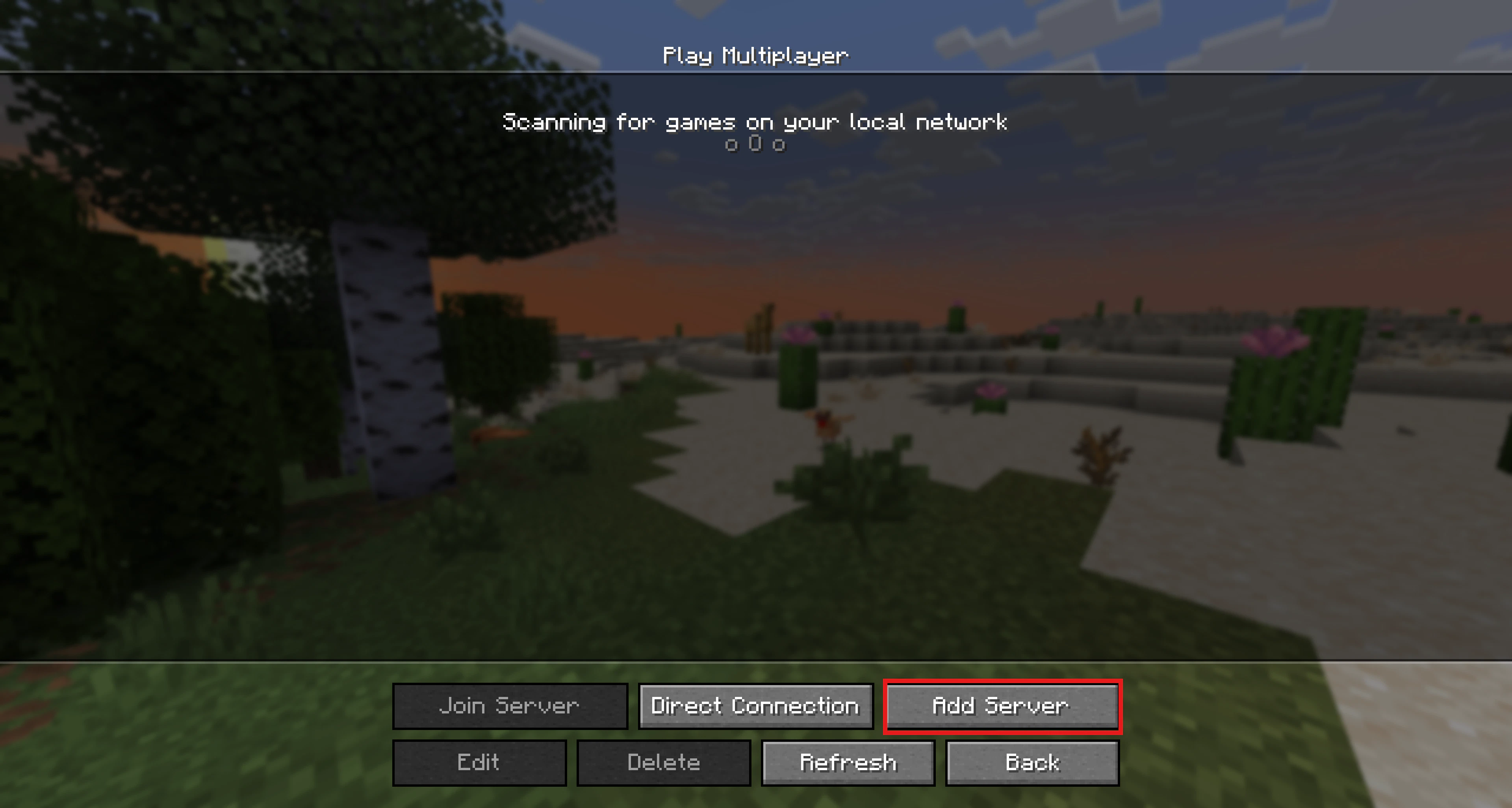
To add the TrilogyMC server to your multiplayer server list, click the Add Server button on the bottom right of the menu. Shows the multiplayer section with a red retangled outline around the "Add Server" button.
Adding the Server Address

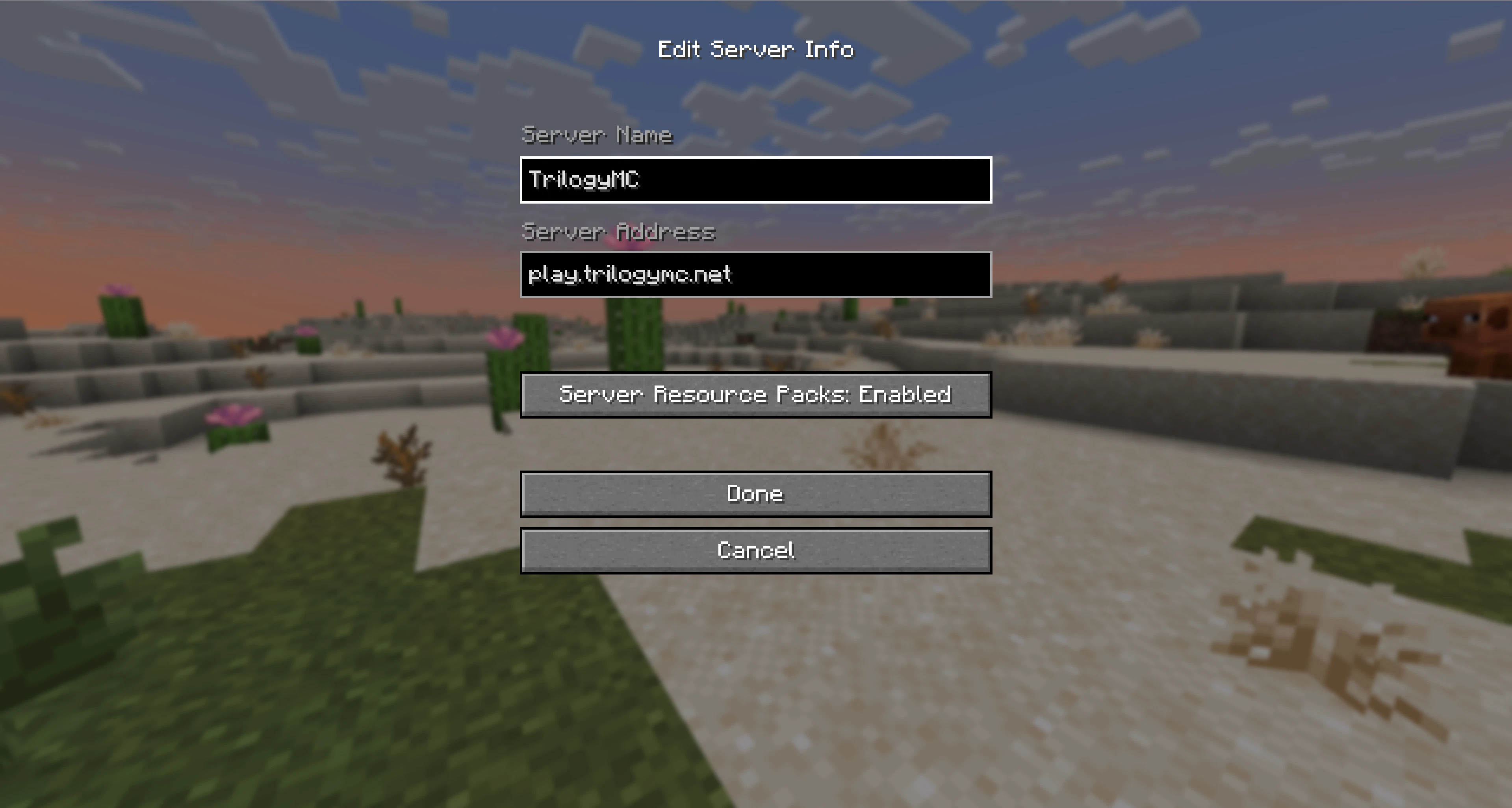
Input the following server details within each of the field boxes shown: Server Name: TrilogyMC Server Address: play.trilogymc.net Server Resources Packs: Enabled (this allows us to send resource packs automatically) Shows the inside of the "Add Server" section with a few fields and buttons too.
Joining the Server

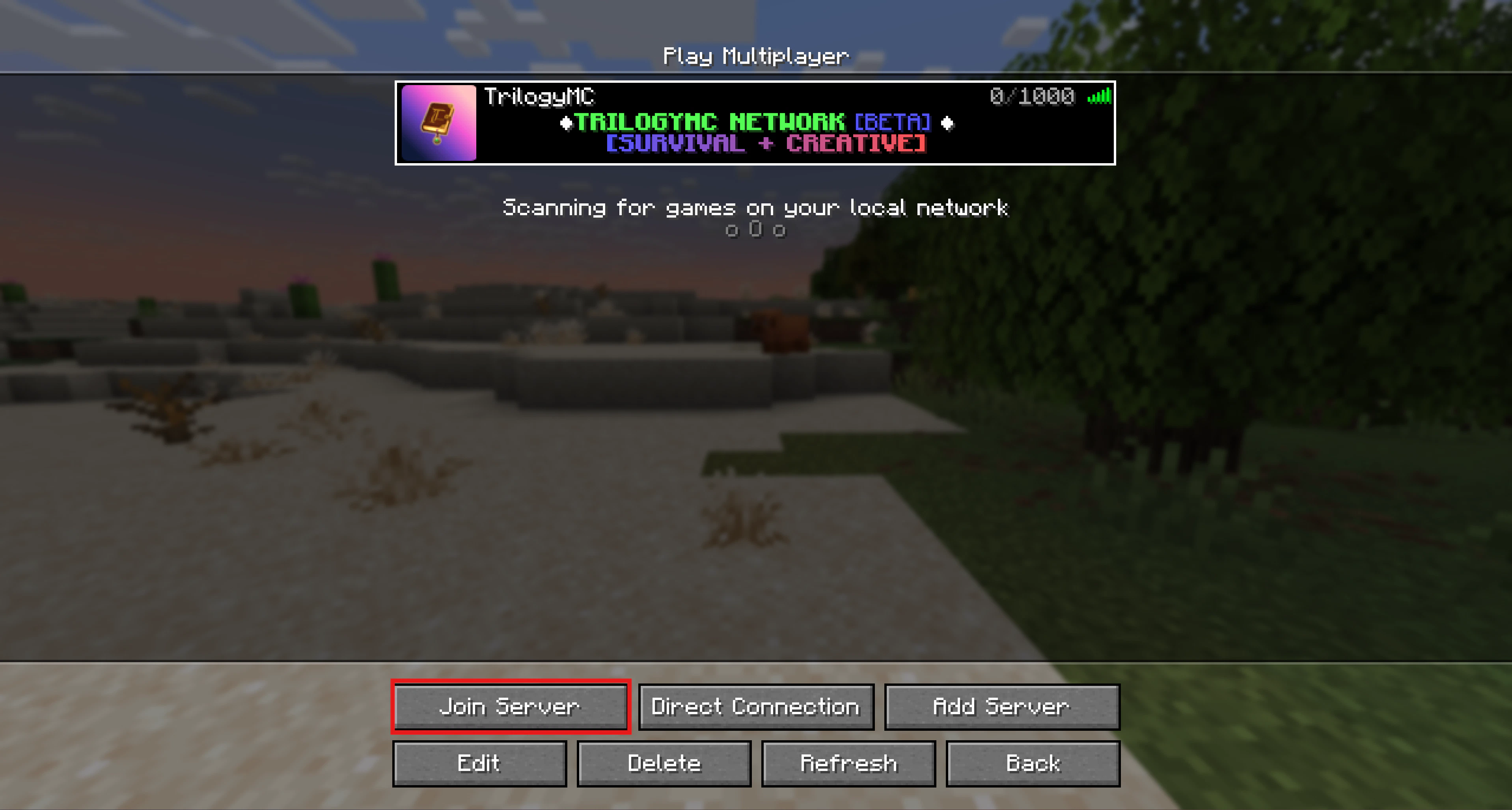
To join TrilogyMC, click on the server in your multiplayer server list and click the Join Server button. Shows the multiplayer section with a red retangled outline around the "Join Server" button.
Getting Started

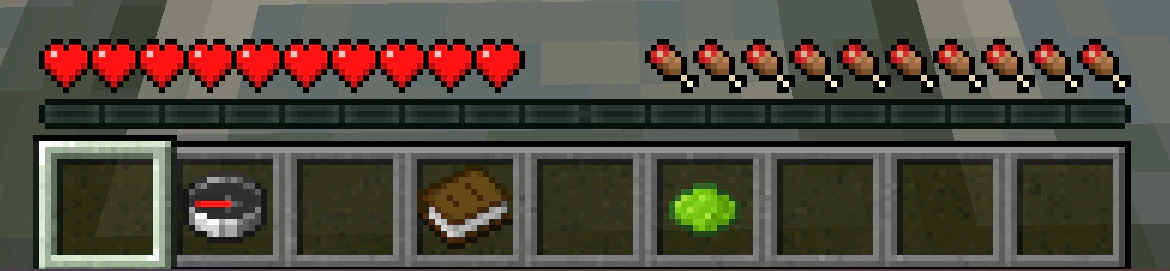
Now that you’ve joined, let’s go over a few of the items you get in your hotbar when joining for the first time: Shows the hotbar in-game with a white square outline around an empty box. Compass The compass will be used as your Game Menu, which allows you to browse through our current games that are available to play. Book The book will allow you to navigate through different lobby numbers. Upon clicking it, you will notice that other lobbies will have different colors from the others. If a lobby is marked RED, that’s the lobby you’re currently in. Lime/Grey Dye Grey Dye: When enabled, you will not be able to see other players in the lobby. Lime Dye: When enabled, you will be able to see all the players in the lobby you’re currently in.